
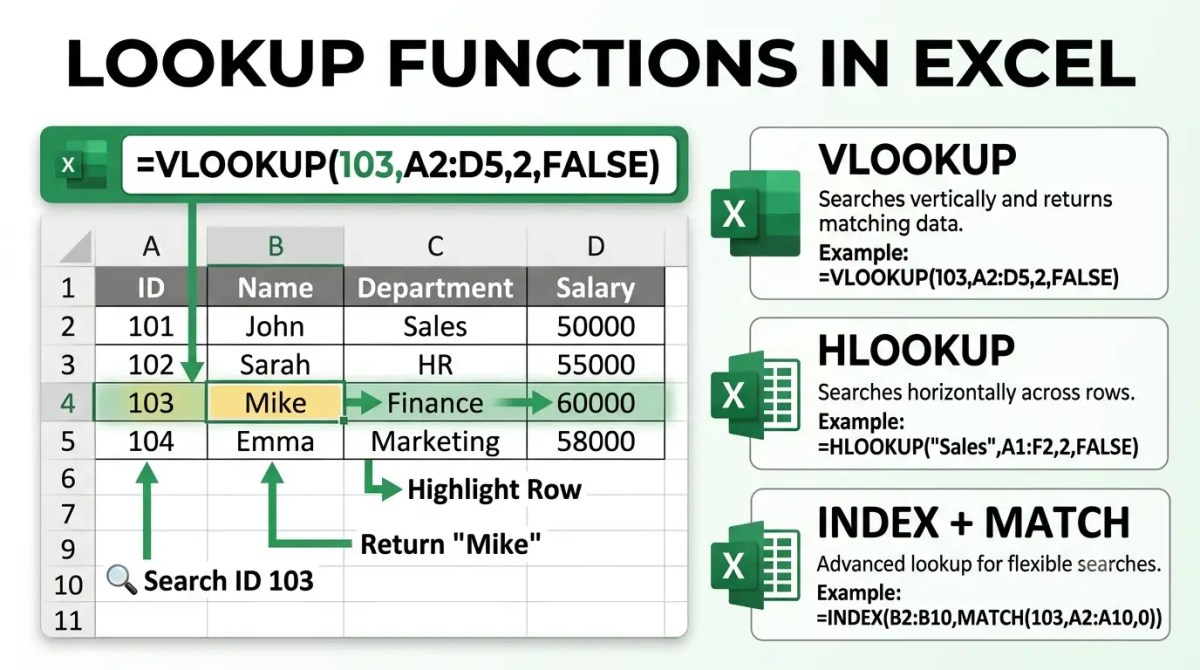
What is XLOOKUP in Excel?
XLOOKUP searches one range for a value and returns the corresponding value from another range. It is useful for finding employee details, product prices, invoice information, and other records without manually searching through a large table.
Unlike VLOOKUP, XLOOKUP can return values from a column located to the left or right of the lookup column. It performs an exact match by default.
XLOOKUP syntax
=XLOOKUP(lookup_value, lookup_array, return_array, [if_not_found], [match_mode], [search_mode])- lookup_value: The value to find.
- lookup_array: The cells Excel should search.
- return_array: The matching cells from which to return a result.
- if_not_found: Optional text or value if no match is found.
- match_mode: Optional matching method; 0 (exact) is the default.
- search_mode: Optional direction or search method.
Example 1: Find an employee’s department
Imagine a simple employee table:
| Cell | A: Employee ID | B: Name | C: Department |
|---|---|---|---|
| Row 2 | E101 | Asha | Sales |
| Row 3 | E102 | Ravi | Finance |
| Row 4 | E103 | Neha | Operations |
Type E102 in cell E2. To display the department in F2, enter:
=XLOOKUP(E2,A2:A4,C2:C4,"Not found")Result: Finance. Excel finds E102 in A3 and returns the department from C3.
Example 2: Look up a value to the left
If you enter Operations in E3 and want the employee name from column B, use:
=XLOOKUP(E3,C2:C4,B2:B4,"Not found")Result: Neha. The return range appears to the left of the search range; XLOOKUP still works.
Example 3: Show a helpful message when nothing matches
When an employee ID is absent, the fourth argument makes the result easier to understand:
=XLOOKUP("E999",A2:A4,B2:B4,"Employee not found")Result: Employee not found.
XLOOKUP versus VLOOKUP
| Feature | XLOOKUP | VLOOKUP |
|---|---|---|
| Exact match by default | Yes | No; you must specify FALSE or 0 |
| Return data from the left | Yes | Not directly |
| Separate search and return ranges | Yes | No |
| Built-in message when not found | Yes | Use IFERROR or IFNA |
Common XLOOKUP mistakes
1. The search and return ranges differ in size
Make sure the lookup and return ranges contain corresponding rows (or corresponding columns for a horizontal lookup).
2. Numbers are stored as text
An ID stored as text may not match a numeric ID. Check cell formats or normalize the source data.
3. Extra spaces
Leading or trailing spaces can prevent a match. Consider cleaning imported text with TRIM.
4. Your Excel version does not support XLOOKUP
XLOOKUP is available in Microsoft 365, Excel 2021, Excel 2024 and Excel for the web, but it is not available in standalone Excel 2016 or Excel 2019. If your version lacks it, use INDEX/MATCH or VLOOKUP instead.
Practice exercise
Use the employee table above and try these tasks:
- Return the name for employee E103.
- Return the department for E101.
- Enter an unknown employee ID and display “Not found”.
Answer for task 1: =XLOOKUP("E103",A2:A4,B2:B4,"Not found")
Answer for task 2: =XLOOKUP("E101",A2:A4,C2:C4,"Not found")
Frequently asked questions
Does XLOOKUP require the data to be sorted?
No. For the default exact-match lookup, you do not need to sort the data.
Can XLOOKUP search from the bottom of a list?
Yes. Set search_mode to -1, such as =XLOOKUP(E2,A2:A4,C2:C4,"Not found",0,-1).
Why do I get #N/A?
The lookup value was not found using the selected matching rules. Check for typos, hidden spaces, or inconsistent data types, or add an if_not_found argument.
Keep learning
Explore our Excel Functions module for more formulas, including lookup, text and logical functions.
Microsoft reference: XLOOKUP function documentation. Examples in this tutorial are illustrative and should be checked in your target Excel version before publication.


